April 6, 2026
March 2026
In this edition: Processing check payments, multiple badges for catalog items, enhanced promotions, and item-level recommendations.
Accepting Check Payments
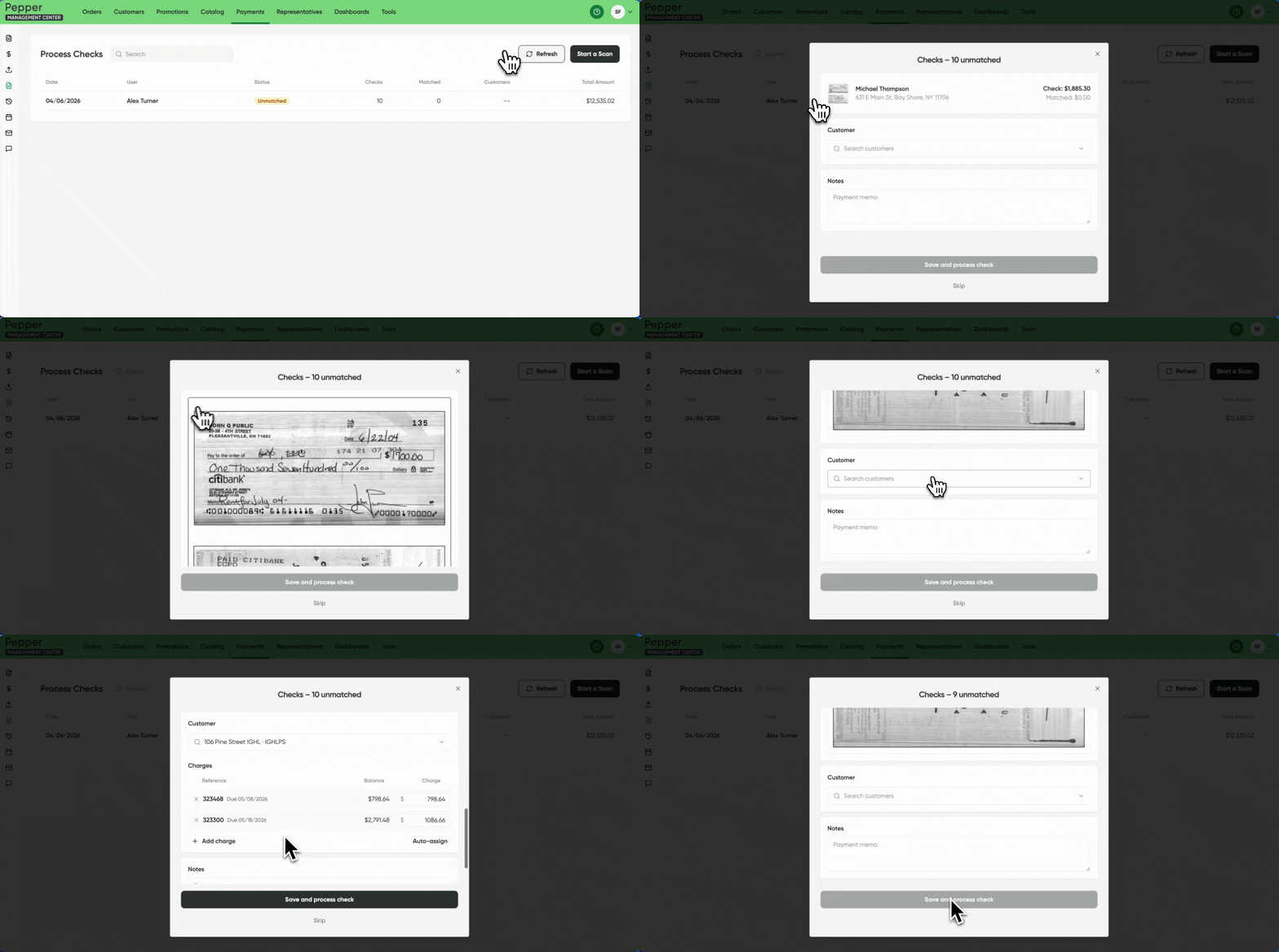
Distributor admins and employees can now process physical checks directly from the Pepper admin portal (PMC). Scan a check, match it to a customer, apply the payment to open invoices, and submit - all without leaving the platform. Check amounts are applied to invoices in sequence, and any remaining balance rolls to the next invoice automatically. Funds settle to the distributor's bank account the next business day (T+1).
Pepper also remembers how checks have been matched in the past. Repeat checks from the same source are automatically matched to the right customer, cutting out manual steps for regular payers.
Availability
Check scanning is open to anyone with a finance hub subscription. Check Scanning requires a compatible scanner device and is available for distributors with Finance Hub enabled, contact your Pepper customer success rep to get started.
Multiple Item Badges
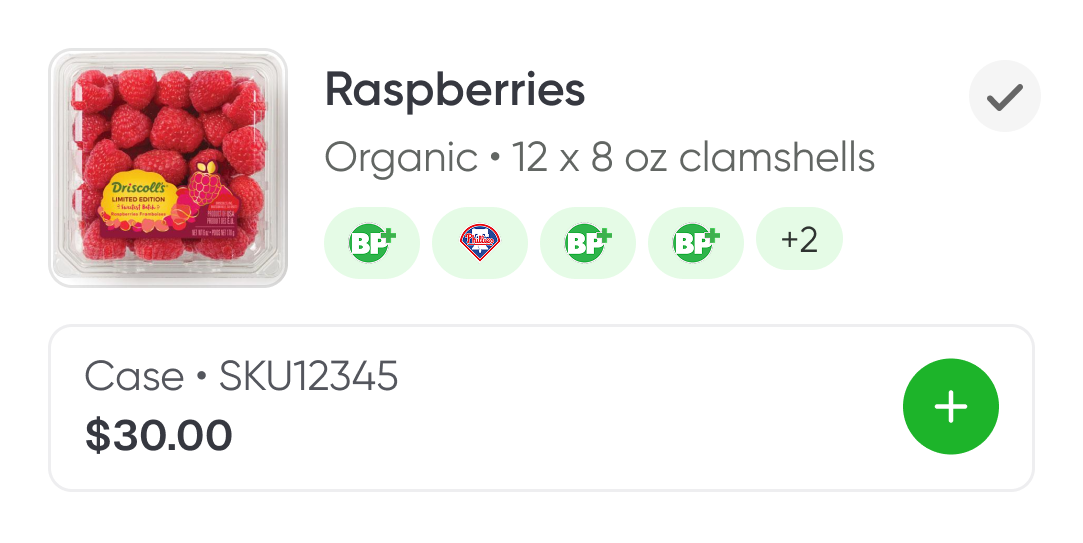
Users can now assign multiple badges to catalog items, instead of being limited to one badge per item. One badge can be applied per Item Group, with items inheriting badges from their parent groups. Badges display across all catalog views, and operators can filter by multiple badges in search.
Availability
Multiple item badges are available to all storefront customers.
Multiple Discounts per Promotion

Users can now add multiple discounts to a single promotion in the admin portal, each with its own trigger and effect. An entire flyer or campaign (e.g. apples at $1 off and oranges at $2 off) can be grouped under one promotional tile rather than appearing as separate promotions. Supported discount types include Percentage Off, Amount Off, Fixed Price, and Free.
Availability
Multiple discounts per promotion are available to all storefront and sales hub customers.
Item-level Connections and Recommendations
.png)
Users have endless opportunities with item connections, which now allow users to control what shows up as "Similar Items" and "Recommended Items" on product pages. The Item Connections tool in the admin portal lets you search your product catalog, assign up to 3 similar items and 5 recommended items per product, and reorder them by priority.
Availability
Item Connections are available to all storefront customers.
Configurable "Become a Customer" Workflows
The 'become a customer' button on the landing page of your Pepper catalog is now configurable - direct new users to homegrown sites or forms for easier demand gen.
Availability
All storefront customers
Self-Serve Punchout Configuration
Users now have the capability to manage their own punchout credentials directly within the admin portal. No more support tickets to add users!

Availability
All storefront customers
Additional Finance Hub Updates:
New Filters in Transaction History
Transaction History in PMC now includes filters for Status, Payment Method, and Reference Number. Filter by payment status (pending, completed, or failed), narrow by method (ACH, Card, Plaid, or PAD), and search directly by invoice or reference number — no more scrolling to find what you need.
Payment Failure Reasons Now Visible in Transaction History
When a payment fails, the reason is now surfaced directly in PMC. Failed transactions display an info icon next to the status label, and hovering over it shows the failure reason in a tooltip. Status labels across Transaction History also now follow consistent color coding: red for failed, yellow for pending, and green for successful.
Cancel Pre-Authorized Payments
You can now cancel pre-authorized (hold on card) payments directly in PMC without contacting your payment processor. Payments captured as pre-authorizations appear as "Hold on card" in Transaction History and can be voided before capture. Customers receive an email notification when a pre-auth is cancelled.
Generate Payment Links from Direct Charge
Payment links can now be generated directly from the Direct Charge form in PMC. Click the link in "A link will be sent to your customer via email" to copy a shareable payment link to your clipboard. Links support partial payments and work for both invoices and credit memos.
Autopay Enrollment from Payment Statement Email
Customers can now enroll in Autopay directly from their payment statement email. After completing a payment, an "Enroll in Autopay" button appears on the payment success page, showing available schedules and the customer's default payment method. Customers who sign up this way appear as self-onboarded in PMC Autopay.
ERP Balance Updates on Invoices After Payment
A new per-distributor setting allows ERP balance updates to sync to invoices even after a payment has been captured. Once enabled, the invoice balance is held for a configurable period (defaulting to 24 hours) before the ERP balance takes precedence, covering both balance increases (e.g., a line item added post-delivery) and decreases (e.g., a customer who paid by check outside of PMC).
Redesigned Payments Tab
The Payments tab in the restaurant app has been redesigned with a cleaner layout and more visibility into what's owed. Total outstanding balance now appears at the top of the invoice list, calculated in real time. Overdue amounts are highlighted in red so it's immediately clear what's past due.
Enable Plaid Payments Toggle per Customer
A new "Enable Plaid payments" toggle is now available in Customer Preferences in PMC, giving you control over which customers can pay via Plaid. The toggle appears alongside the existing ACH and credit card controls when in-app payments are enabled, and defaults to on.