November 4, 2026
In this edition: Credit applications and checks for faster onboarding, credit requests on desktop, faster scanning, and Orders and Notes in Sales Hub mobile.
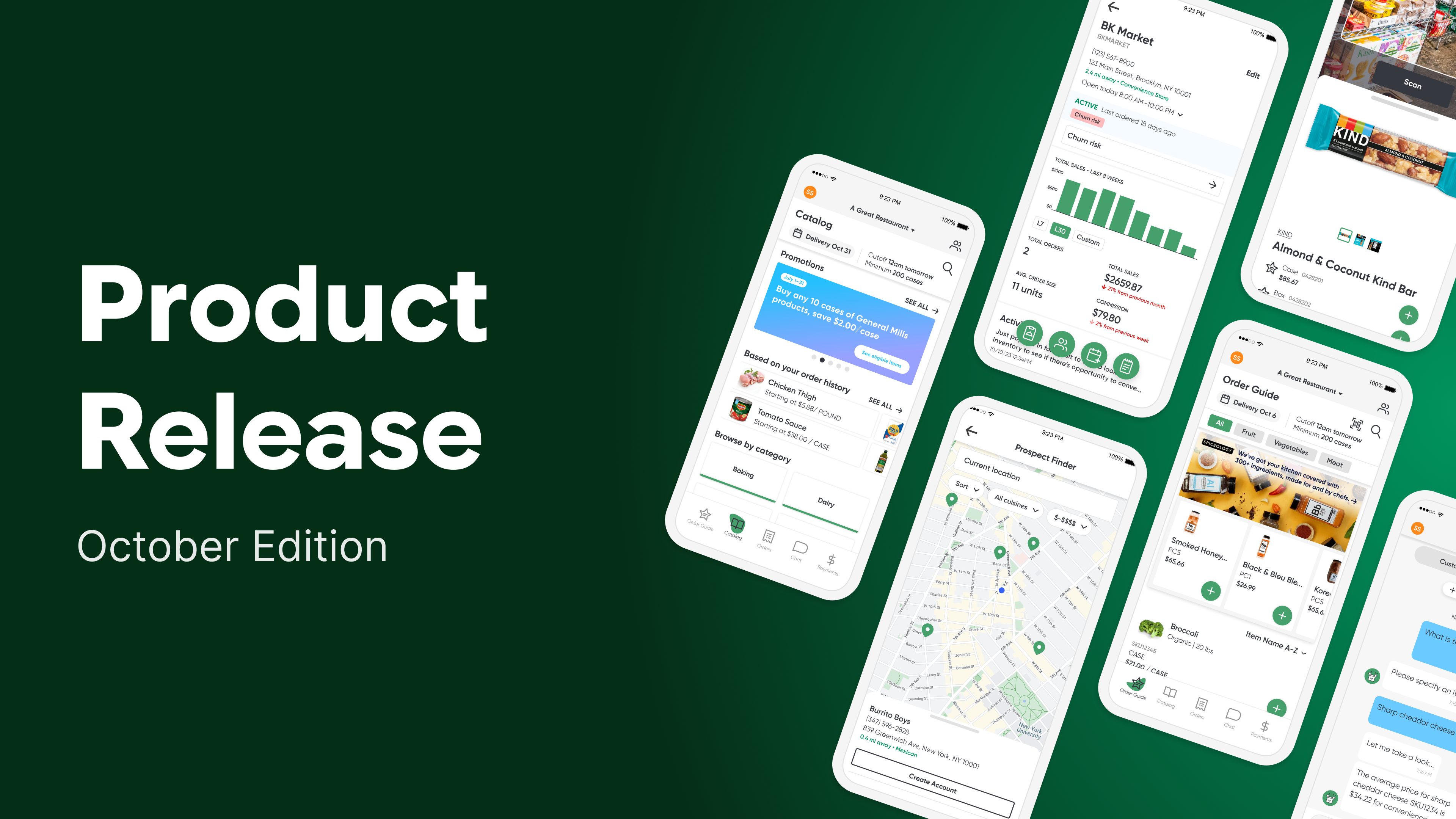
Onboard New Customers With Credit Applications and Credit Checks
Onboard new customers faster without paper forms or a separate tool
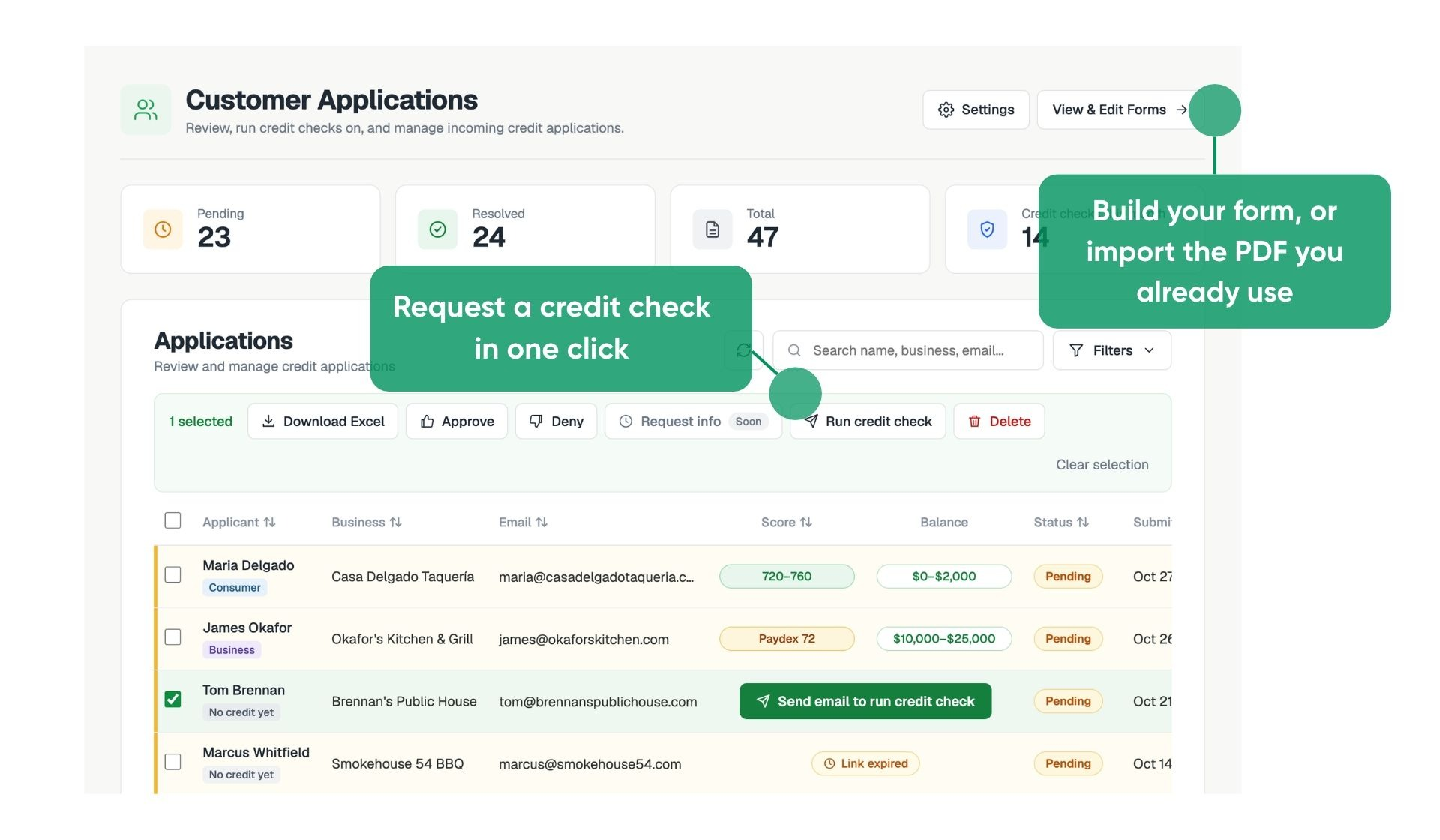
You can now build credit application forms in PMC, send prospects a link, and approve or deny them from one dashboard. Applicants fill out the form in a browser without a Pepper login, sign it, and upload any documents you request.
- Start from your own form. Import your current PDF application or build from scratch with fields like signature, file upload, and bank verification. Each form gets its own shareable link.
- One dashboard. Approve, deny, or export applications one at a time or in bulk. Every edit is logged.
- Optional credit checks (US only). Run a business credit check from any application to see the Business Risk rating, Intelliscore, and the full report.
See the Credit Applications help center article to learn more.
Availability
Pepper turns on Credit Applications for each distributor. Once it's on, open Tools > Customer Applications Dashboard in PMC. Credit checks are available in the US only, and can be enabled form by form. Decision emails are off by default. Contact your account team to get started.
Request a Credit From Desktop
Report a problem item without switching to the mobile app
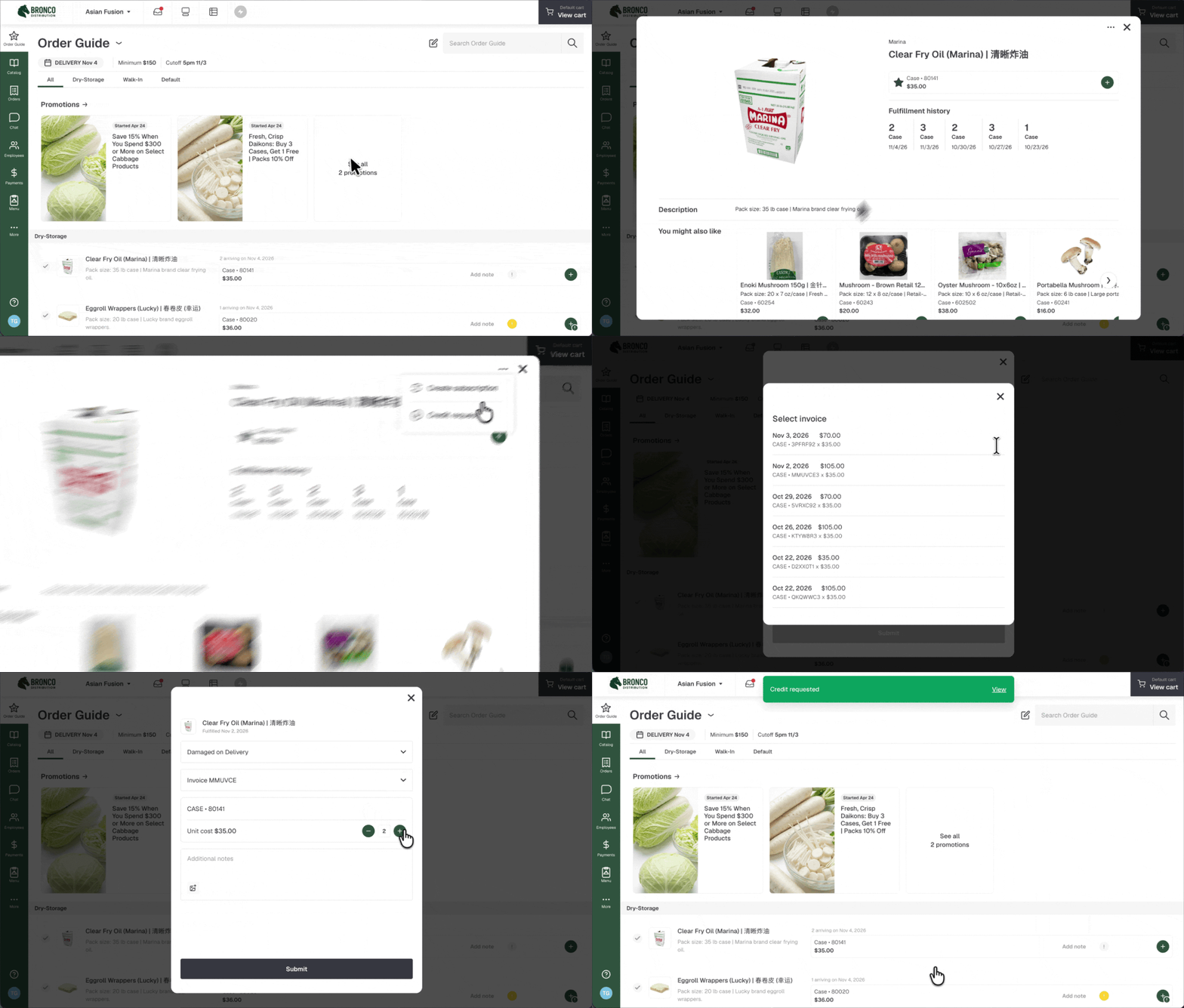
Operators on desktop no longer need to switch to the app to report a damaged, short, or wrong item. They can now request a credit straight from any catalog item.
- Same form as the app. Open an item, click ••• > Credit request, and pick a reason, invoice, unit, and quantity. Add notes and up to 3 photos.
- Confirmation with a link. After submitting, a message appears with a View link that opens the request in Orders.
- Nothing lost by accident. Credit forms on desktop now ask before discarding unsaved changes. If a request fails, everything stays filled in so you can try again.
See the Creating a Credit Request help center article for details.
Availability
Live for Storefront customers with credit requests turned on. No setup required. Credit requests on desktop follow your existing credit request settings, including eligibility, request periods, and reasons.
Faster Order Entry for Scanning
Scan straight into an order
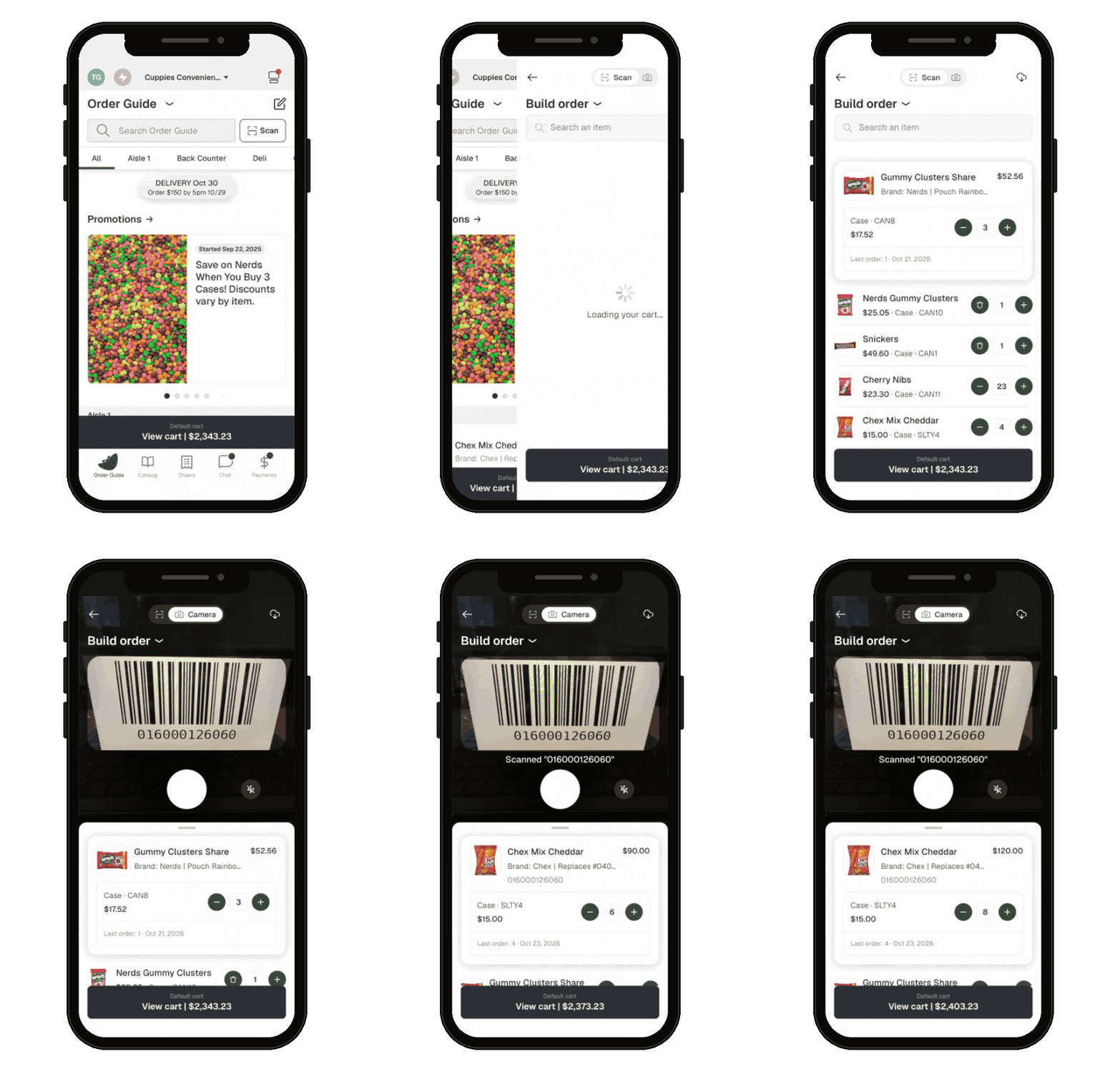
Tapping Scan from the catalog or an order guide now opens straight into Build Order. Customers with credit requests or tag printing no longer pick a mode first.
- Bigger last scan. The item you just scanned sits at the top in a large card with its image, name, pack size, item number, and a quantity stepper. Confirm you got the right item before scanning the next one.
- Compact history. Earlier scans collapse into slim rows underneath. A long scan session fits on one screen.
- Switch modes in place. Use the dropdown at the top of the scanner to move between Build Order, Request Credit, and Print Tags. Back returns you to the screen you scanned from.
See the Barcode Scanning help center article for details.
Availability
Live for all Storefront customers. No setup required. Request Credit and Print Tags appear only for customers who have those features turned on.
Orders and Notes in Sales Hub on Mobile
Check an order or log a follow-up from the parking lot
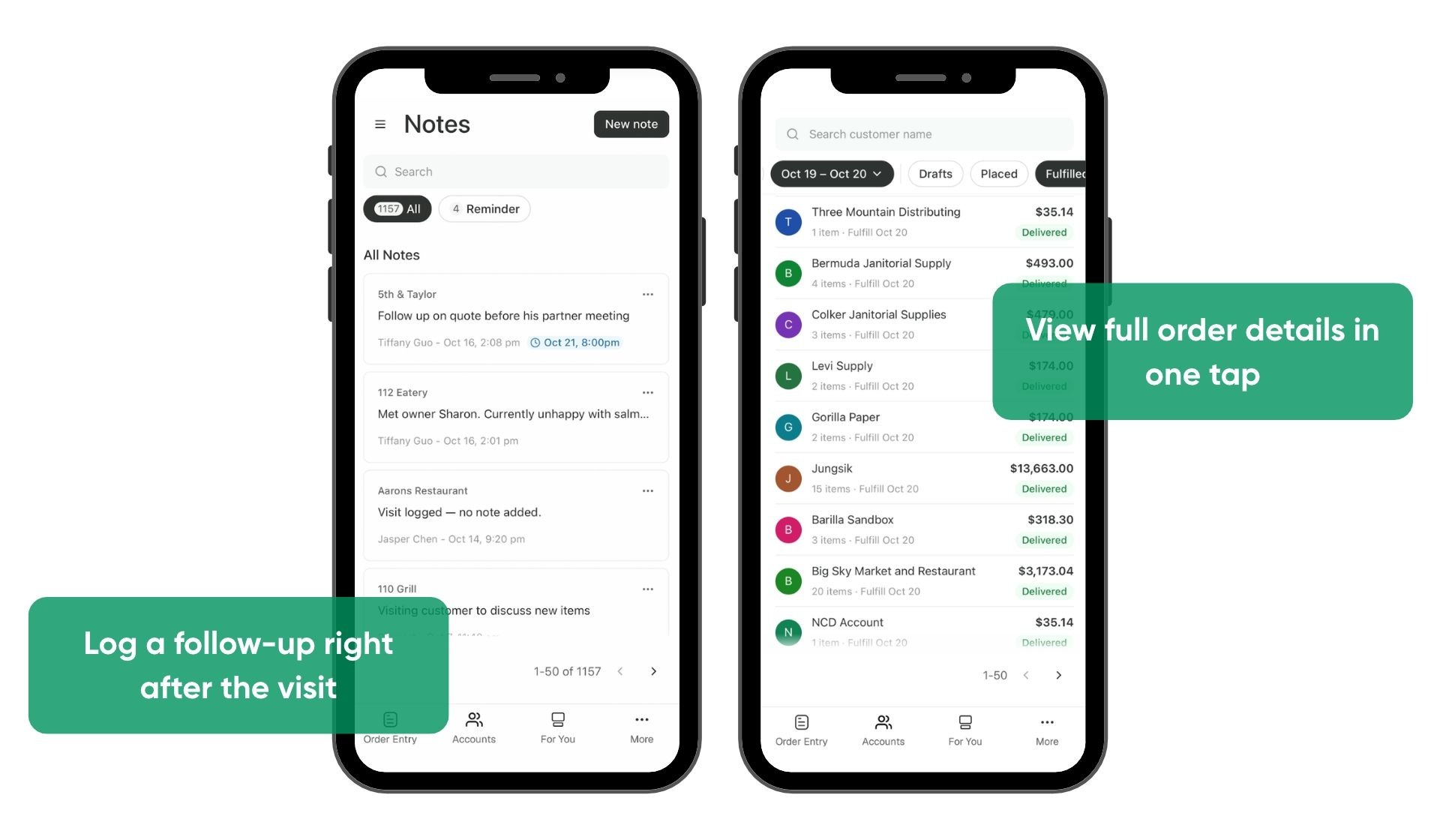
Reps spend much of their day on the road, so Sales Hub on mobile now includes Orders and Notes. Tap More in the bottom bar to open either one.
- Orders at a glance. Each order appears as a card with the customer, total, status, item count, and date. Tap a card for full order details.
- Invoices and drafts. Open an order's invoice PDF, or pick up an Order Entry draft where you left off.
- Notes across every account. One list of notes and reminders, same as desktop. Log a follow-up right after a visit without opening the account first.
See the Sales Hub on Mobile help center article for the full walkthrough.
Availability
Live for all Sales Hub customers with mobile Sales Hub. No setup required.
Price Quotes With Your Margin in View
Know your margin and your savings before the quote goes out
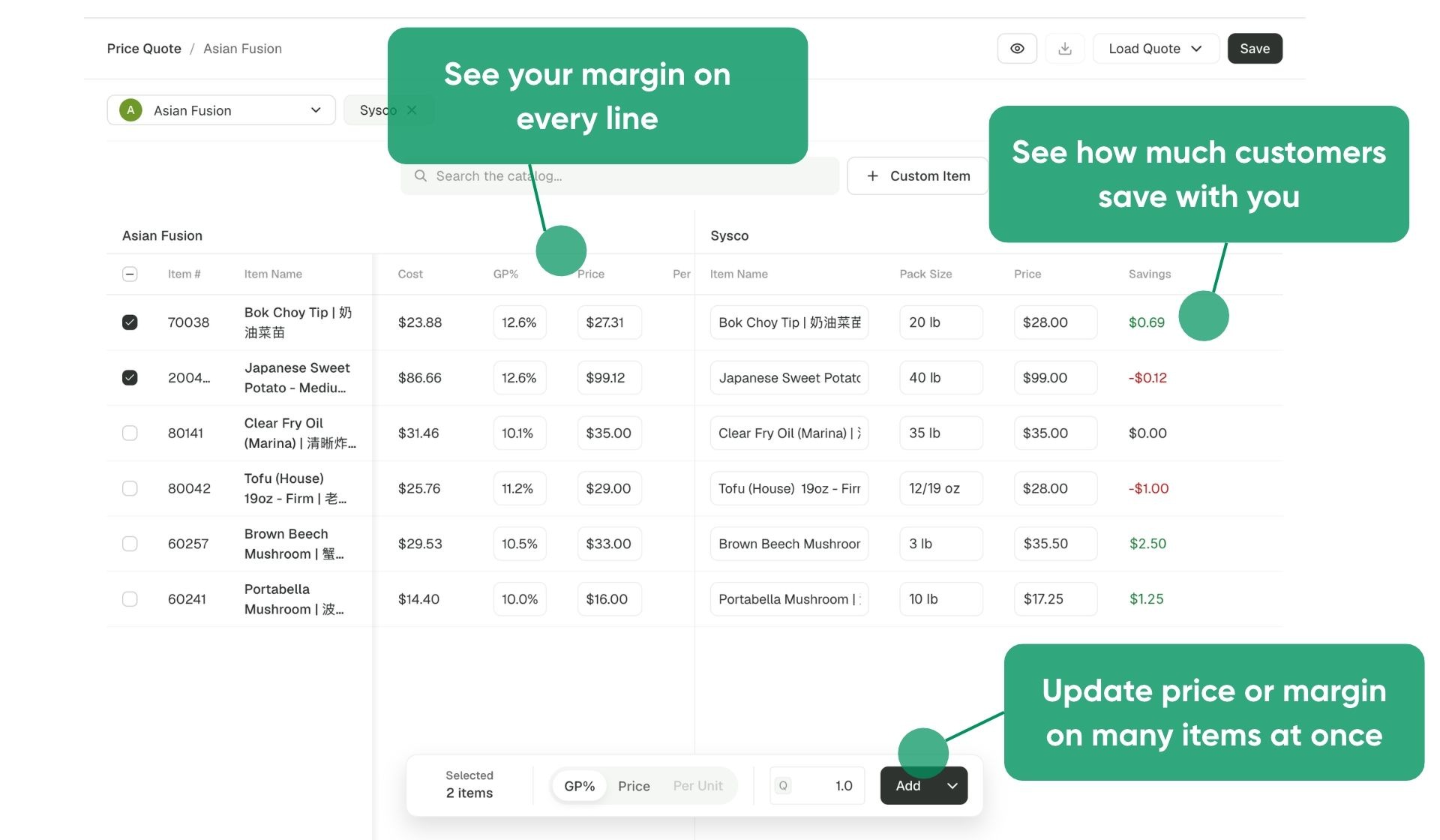
Reps quoting against a competitor have to know how low they can go and whether they’re still winning. Price Quotes now shows both on one screen, so reps with price editing access can price to win without giving away margin.
- Margin on every line. Cost and GP% sit next to each price, and typing a GP% sets the price instantly. An eye button hides cost from view, and quote PDFs and CSVs never include it.
- Proof you’re winning. Enter a competitor’s price, and the Savings column shows the difference in green or red, ready to put in front of the customer.
- Bulk updates. Apply a GP% or price to every selected item at once.
- A head start on every quote. Copy another customer’s items and prices, price like a customer group, or load the customer’s order guide.
See Price Quotes for details.
Availability
Live for Sales Hub customers using Price Quotes.
Export a Draft Order for Corporate Approval
Export the cart when corporate needs Excel, not a PDF
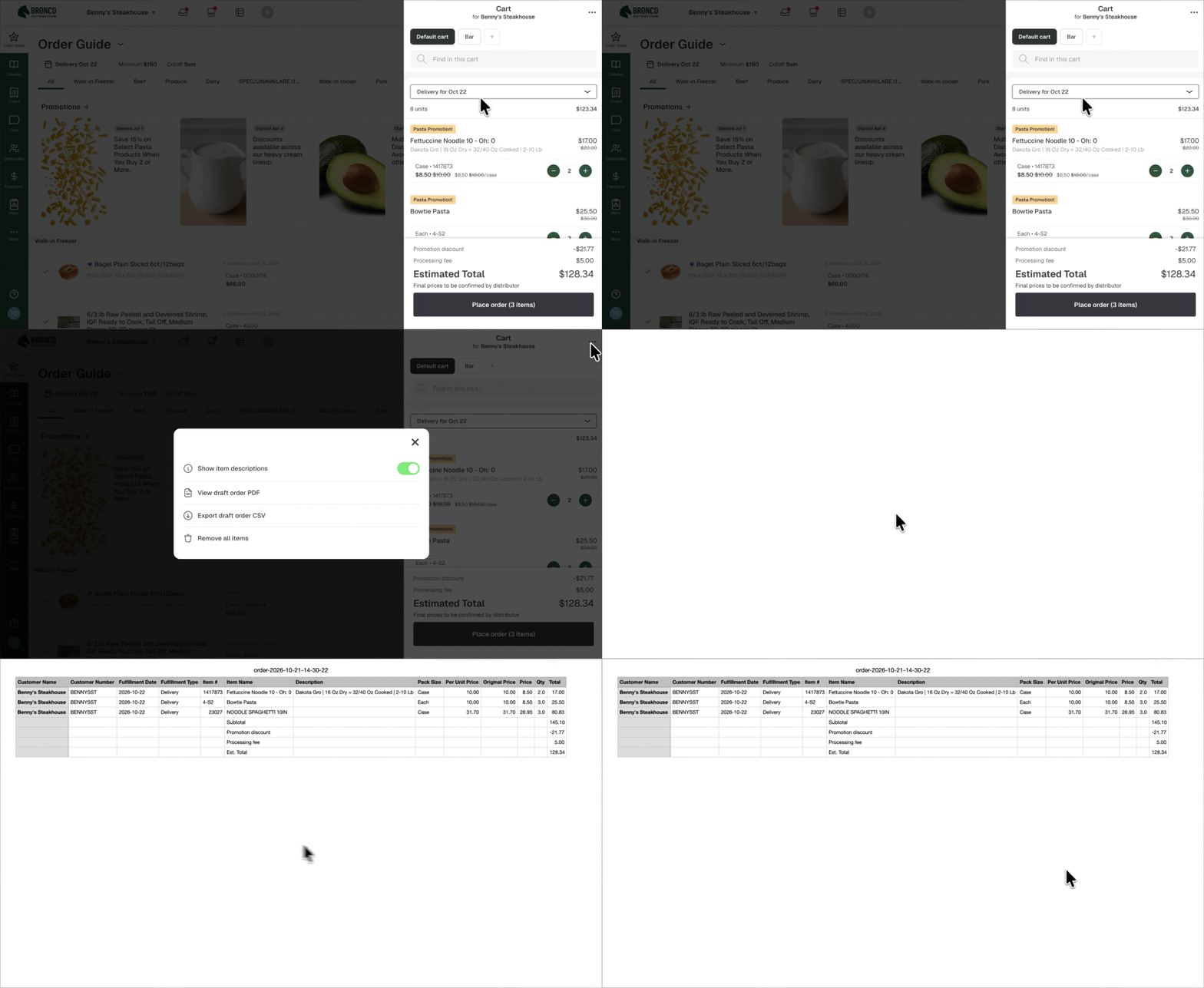
Chain, school, and healthcare operators often need corporate sign-off on orders, and corporate wants a spreadsheet. Operators can now choose Export draft order CSV from the cart menu.
- One row per item. Each row has the item number, name, pack size, price, quantity, and line total, along with the customer, delivery date, and delivery type. Fees, discounts, and the estimated total come after the items.
- Ready for Excel. On web the file downloads. On mobile it opens in the browser so you can save or share it.
- Prices only when allowed. Customers who can’t see prices get items, pack sizes, and quantities only, in both the CSV and the PDF.
Draft order PDFs now show applied discounts too. See Viewing and exporting a draft order for details.
Availability
Live for distributors with Print Draft Order turned on. Other distributors can contact their account team.
Every Pre-Booked Item in One List
Know what's on the way without hunting through invoices
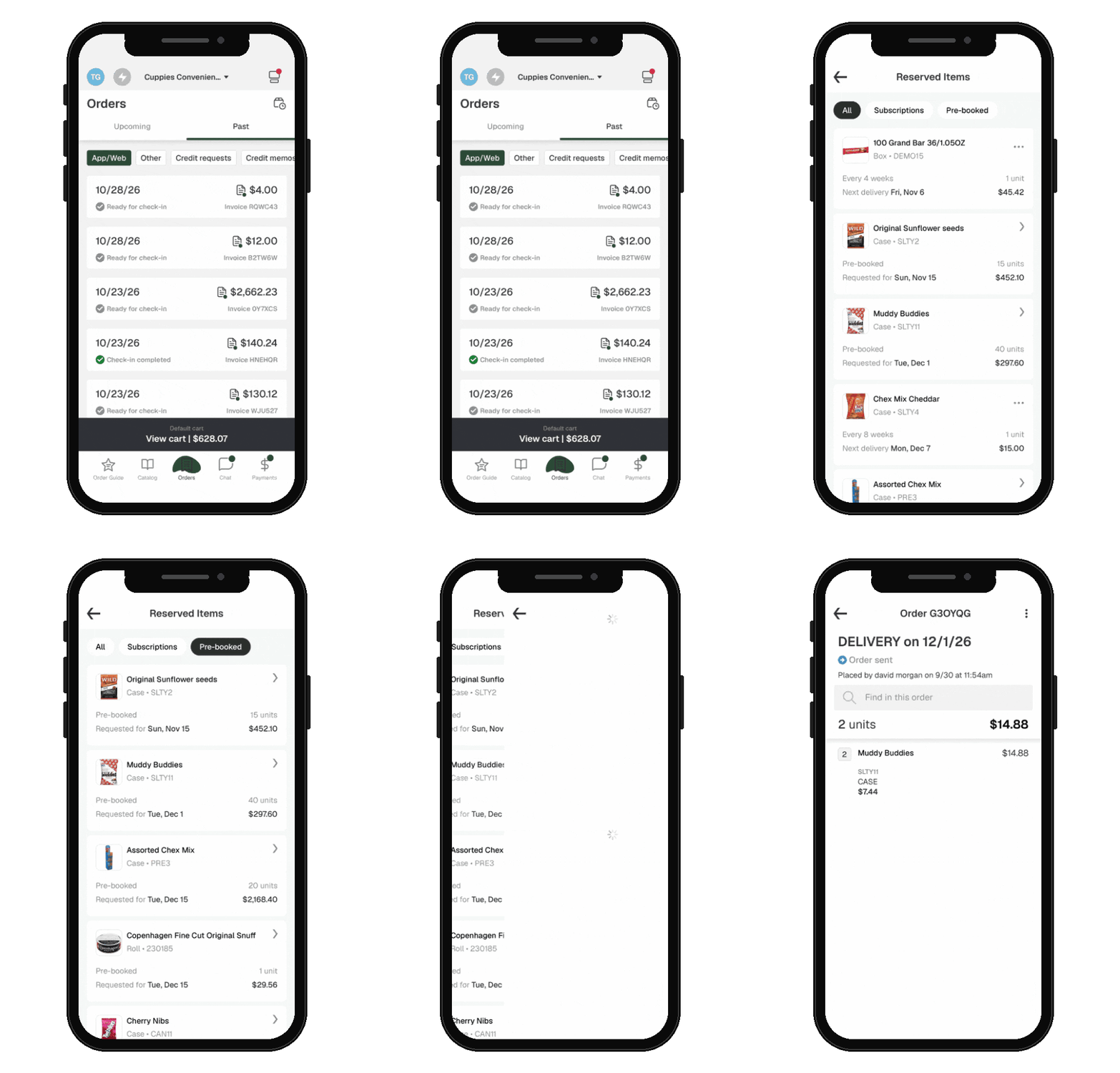
Operators who pre-book had no easy way to see what they'd reserved. For customers with pre-booking on, the Subscriptions screen becomes Reserved Items, one tap from the Orders screen.
- Sorted by arrival. Pre-booked items and subscriptions appear together, soonest first. Tap a card to open its order.
- Clear on timing. Cards read “Requested for [date]” until the delivery time is accepted, then “Arriving [date].” An item pre-booked on several orders appears once, with its soonest arrival.
- Filters. Customers with subscriptions can filter by All, Subscriptions, or Pre-booked. Out-of-stock subscription items are marked “Unavailable, may be skipped.”
- “Already on the way” warning. Customers are warned before ordering an item that’s already arriving on a placed order, pre-book, or subscription.
Availability
Live for Storefront customers with pre-booking. Customers without it keep the Subscriptions screen, now sorted by next delivery. The “Already on the way” warning is off by default, so contact your account team to turn it on.
Delivery Check-In Emails
Know what's arrived, missing, or damaged, wherever you are
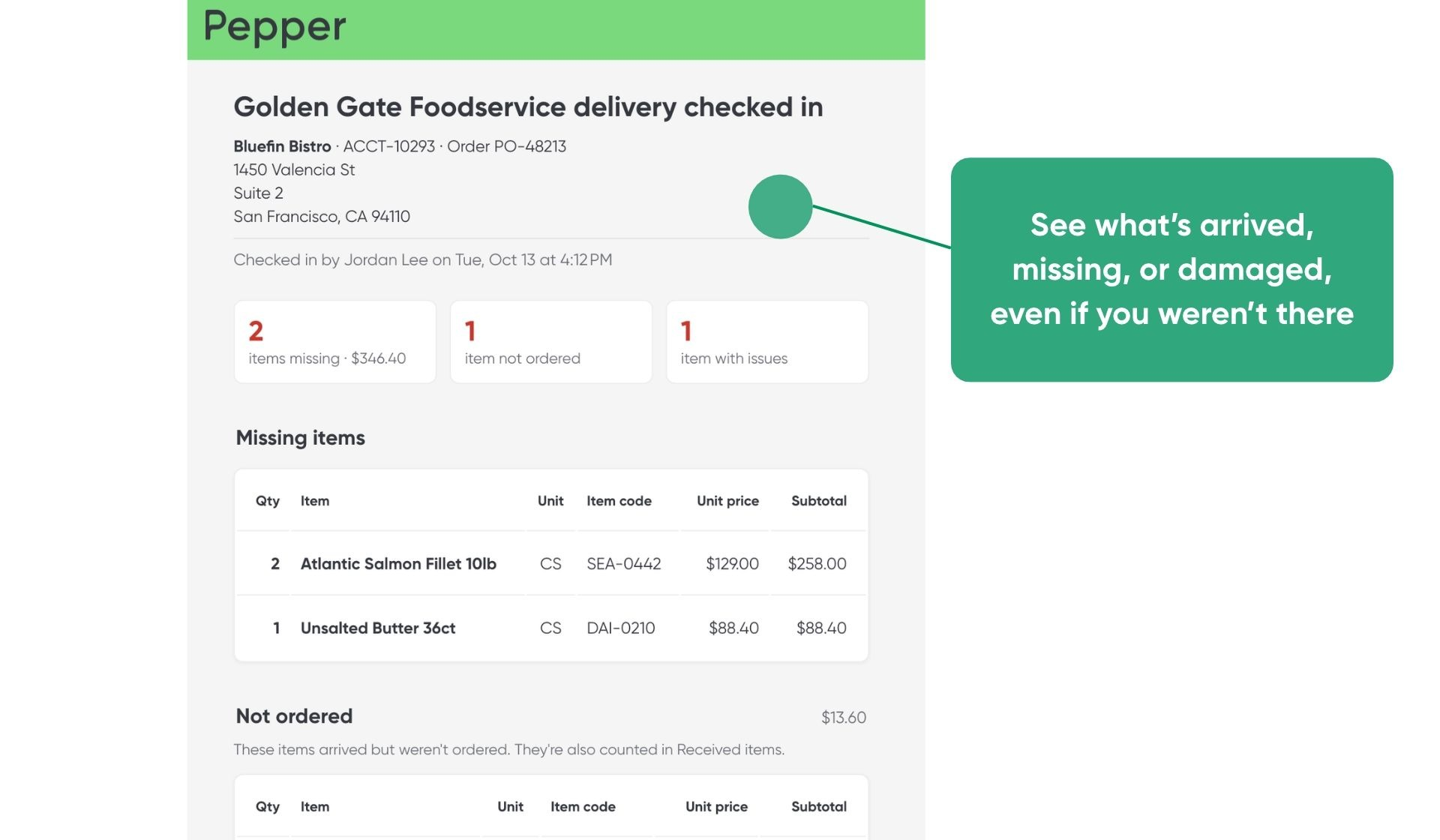
Owners and managers who weren't there for a delivery had no record of what arrived. When someone finishes checking in a delivery, Pepper now emails opted-in staff a summary.
- Problems first. Missing items, items received but not ordered, and damaged or expired items lead the email. The full list of received items follows.
- A subject line that says what needs attention. The subject shows how many items need attention, and the email says who checked the delivery in and when.
- Updates included. If a check-in is edited and completed again, a follow-up email goes out with "Updated" in the subject. Emails use the distributor's logo and colors and arrive in each recipient's language.
Availability
Off by default. Contact your account team to turn it on and choose who receives the emails.
Full Credit History in the Orders Tab
Every credit, in one place
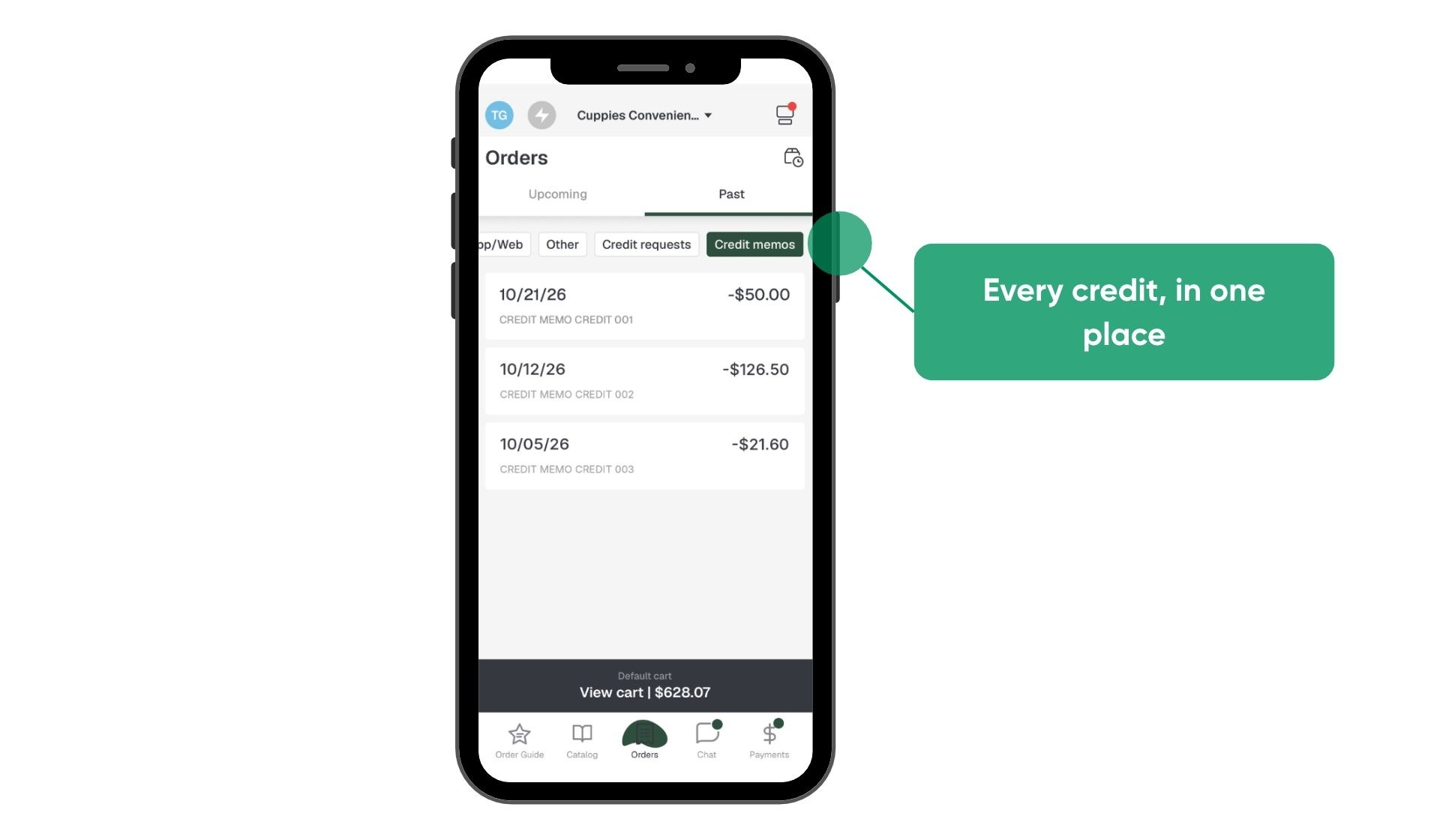
Customers can now see every credit memo in the Orders tab, including credits already applied. Before, credits appeared only in the Payments tab and only while they had an open balance.
- Every credit in one place. Applied and open credits sit alongside orders. Customers no longer dig through the Payments tab.
- Fewer questions. A complete credit record means fewer "where did this credit go?" calls to your team.
Availability
Live for Finance Hub customers. Off by default. Contact your account team to turn it on for your whole business or for specific customers.
Free Items, Called Out on Every Order
Buy-X-get-Y deals, spelled out on every order
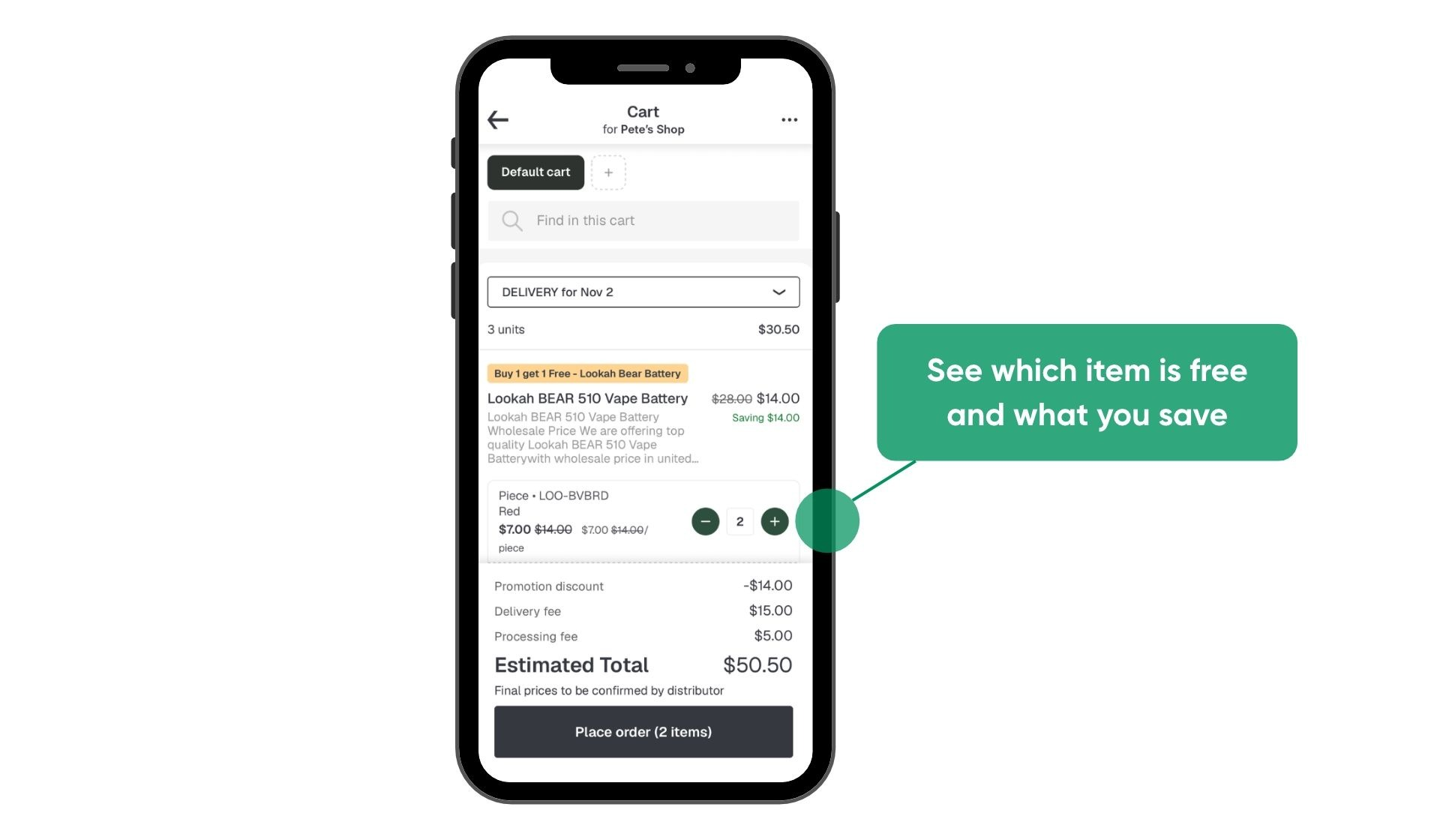
When a "buy X, get Y free" promotion applies, Pepper now shows how many items are free and how much they save. Operators can tell which items are free and check orders against the invoice.
- In the app. Order Summary and order history show an "Includes N free" row for each promotion. The original line total is crossed out.
- On emails and PDFs. Order confirmation emails and draft order PDFs show the original unit price crossed out next to the final amount. A note names the promotion and the savings.
- In exports. Order exports show how many packs each promotion discounted.
See the Creating Promotions help center article for details.
More Updates
Storefront
- Clear filters in search. When filters are narrowing results, including the Order Guide filter, search shows "Not finding what you're looking for?" with a one-tap Clear filters button. Mobile search also keeps your selected filters when you run a second search.
- "Last purchased" shows what was delivered. The last-purchased line in order guides now reflects the quantity that actually shipped. A short-shipped item no longer reads as fully fulfilled.
- "Every N" discounts apply to the whole line. A deal like "$20 off every 4" now discounts every qualifying group of 4. Before, it only took off one case's price.
- Block ordering items with no price. Distributors can stop customers from ordering items without a price, and the app shows which item is holding up the order. Contact your account team to turn it on.
- Smarter recommendations. Recommendations can skip items the customer can't order and fill the slots with the next best items. Contact your account team to turn it on.
- Device clock warning. The app warns customers when their device clock is far enough off to risk missing an order cutoff.
C-Store
- Check-in matches the invoice. Items appear in the same order as the distributor’s invoice, so staff can check them off from top to bottom. Contact your account team to turn it on.
- Faster credit requests. Credit requests default to the each unit and remember the last unit and reason code chosen. Distributors can also list credit and refund reasons alphabetically.
- More on offline tags. Offline tags can include item size and case count, and can show whether a product is guaranteed, meaning returnable to the manufacturer for credit. Contact your account team to set up your tag layout.
- Bigger Scan button. Customers who build orders mostly by scanning can get a more prominent Scan button. Contact your account team to turn it on.
Finance Hub
- Credit memos that match your format. Credit memo PDFs can now be customized the same way invoice PDFs are. For example, a template can show line items as negative amounts and the total as the full credit amount. Contact your account team to set up a template.
- More flexible Autopay schedules. Monthly Autopay can run on any day of the month, and every-other-week schedules ask for a start date. Each setting gets a name from its schedule, like "Every Monday," and payment groups can enroll as one customer. See Autopay.
- Deposit records. Reps and drivers can attach a photo of the deposit slip when marking cash and checks as deposited. Tapping a past deposit shows its payments, total, and slip photo. See Recording cash and check payments.