October 1, 2026
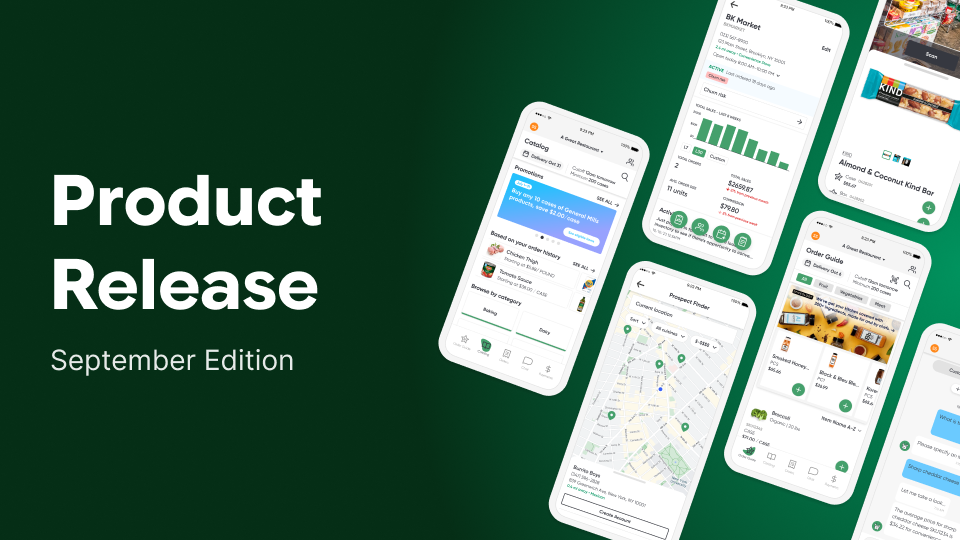
In this edition: Pipeline management and mobile views in sales hub, end-to-end inbound visibility in order agent, Second run fulfillment comes to storefront, and PayTo support for Austraila.
Manage Your Pipeline in Sales Hub
Every prospect, every stage, with a forecast managers can plan around
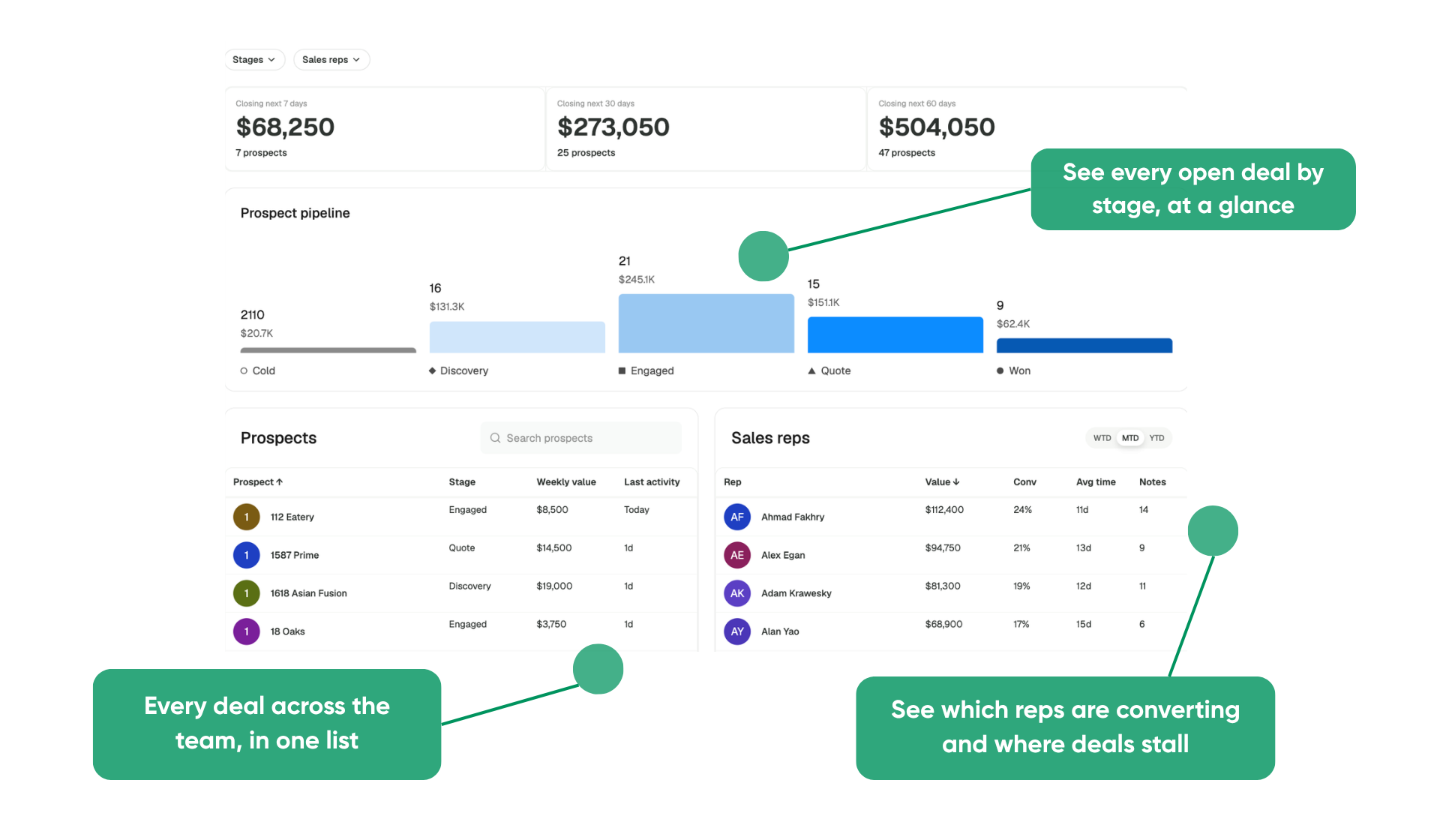
Most distribution selling happens in person, on the route and at the customer's door, so deals end up in notebooks and text threads. Prospects slip through the cracks, the forecast becomes a best guess, and when a rep leaves, the pipeline starts over. The all-new Prospects tab in Sales Hub gives every potential account a home, in the same place reps build order guides and manage accounts.
- Know what's closing without chasing updates. Admins and DSMs see which deals should land in the next 7, 30, and 60 days, built from the close dates and weekly values reps enter as they work each deal.
- Coach from the numbers. Pipeline value, conversion rate, and time to close for every rep show who's growing and who needs help.
- Keep every deal moving. Each prospect's contacts, notes, and stage live on one page the whole team can see, with one-click order guides and operator mode to push it forward. Anything idle for 30 days gets flagged before it goes cold.
- Fill the funnel from the same tab. Find new prospects opens Prospect Finder, so reps build their list where they work it.
See the Prospects help center article to learn more.
Availability
Live for Sales Hub Pro customers on desktop. Admins and DSMs see the team view automatically, and every other role sees their own prospect list.
Inbound History and Collaboration in Order Agent
Every text, email, and voicemail, in one shared view.
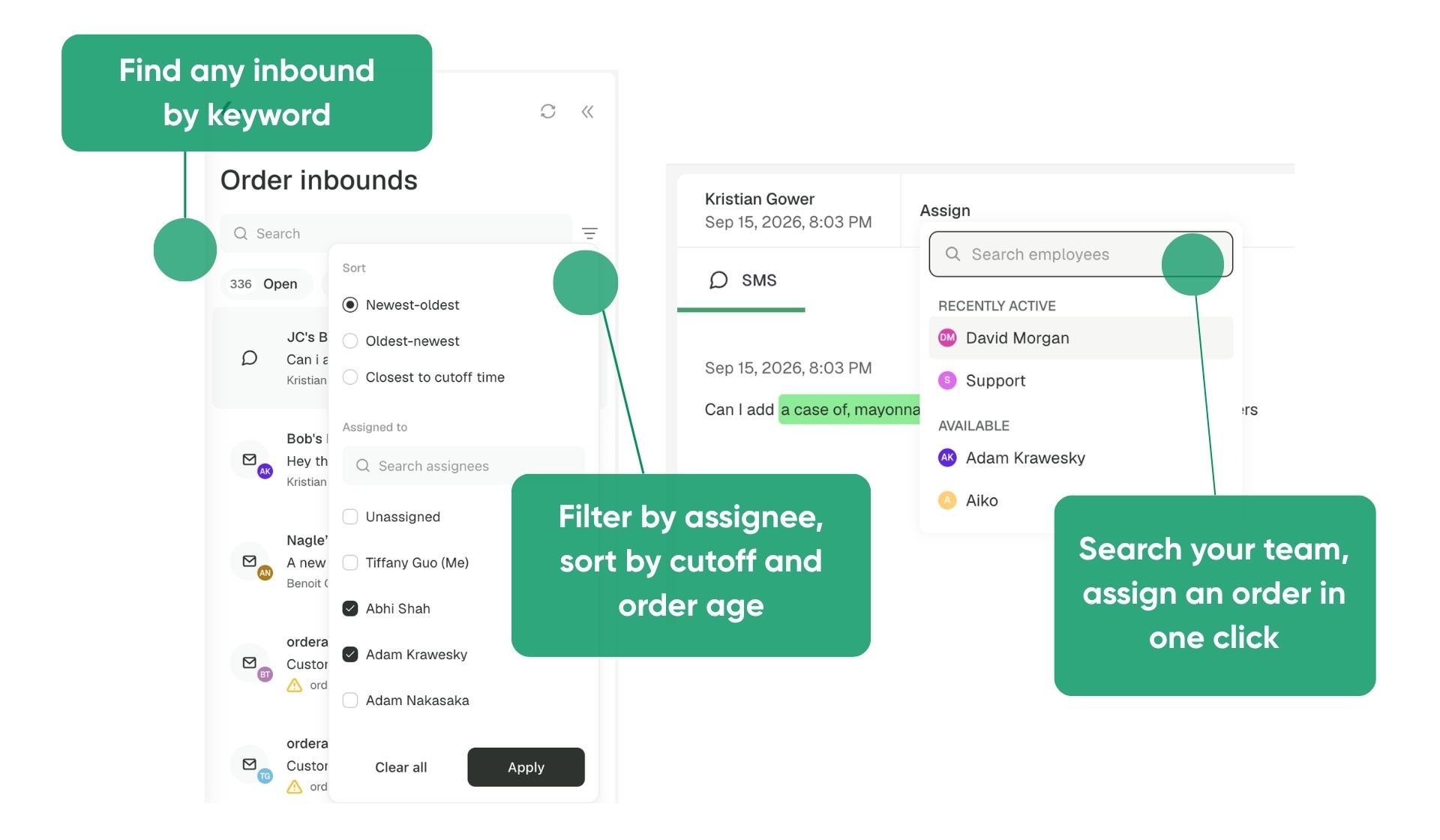
Order Agent now gives better search and filter to all historical inbounds, with more robust assigning capabilities to match how the order desk works.
- Every order can have an owner. Assign an incoming order to a teammate's queue, whether they're covering a colleague's accounts or taking an escalation.
- Work the most urgent orders first. Filter by teammate or unassigned, sort by closest to cutoff, and switch between Open, Closed, and All.
- Find a past order without scrolling the queue. Inbound History keeps every text, email, and voicemail Order Agent has processed, searchable by person, item, note, or code.
- Link-only orders get drafted too. When a purchasing system emails a link instead of an attachment, forward it as usual, and Order Agent opens the link and drafts the order for review.
See the Assigning Orders and Inbound History help center articles for details.
Availability
Live for all Order Agent customers.
Take Sales Hub on the Road
Write orders at the counter, not back at the laptop
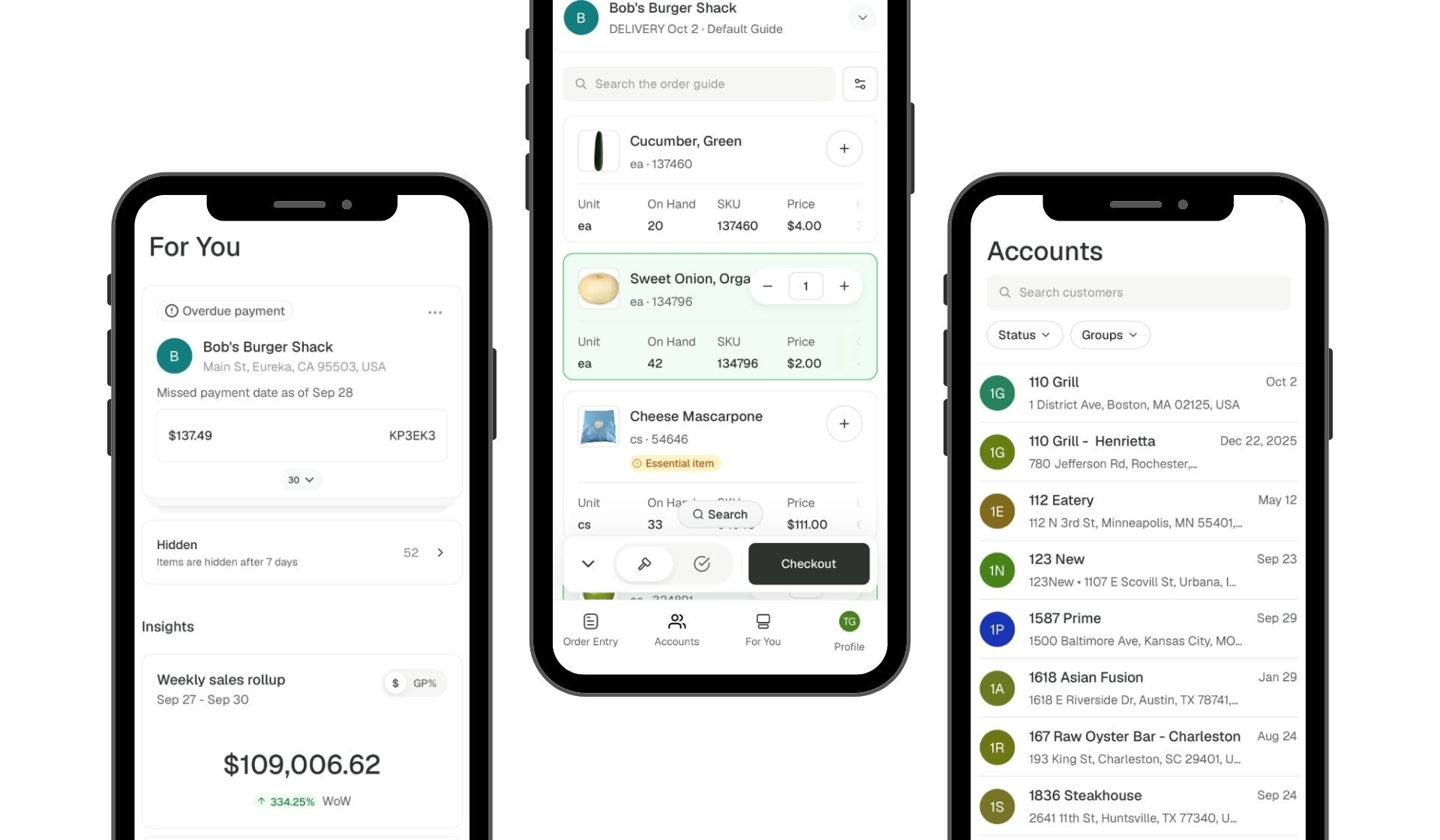
Reps spend their days in their customers' kitchens, and now Sales Hub goes with them. Order Entry, Accounts, and For You all work on a phone, so a rep can write an order at the counter, pull up account details on site, and clear alerts between stops.
- Order Entry, built for a phone. Scroll through each item's fields (the same columns you see on the web), and tap the search pill at the bottom of the screen to jump straight to search.
- Accounts on site. Check an account's details before walking through the door.
- For You between stops. The same alerts and recommendations reps see on the web, cleared from the truck.
- One tap to switch. Tap your profile in the top left and select "Switch to Sales Hub." To head back, tap Profile in the bottom right and select "Switch to Storefront."
More pages are on the way, be on the lookout for: Orders, Notes, Prospecting, Price Quoting, Copilot, and Order Guides.
See the Sales Hub on Mobile help center article for the full walkthrough.
Availability
Live for all Sales Hub customers.
Second Run Fulfillment
Catch the orders that come in after cutoff.
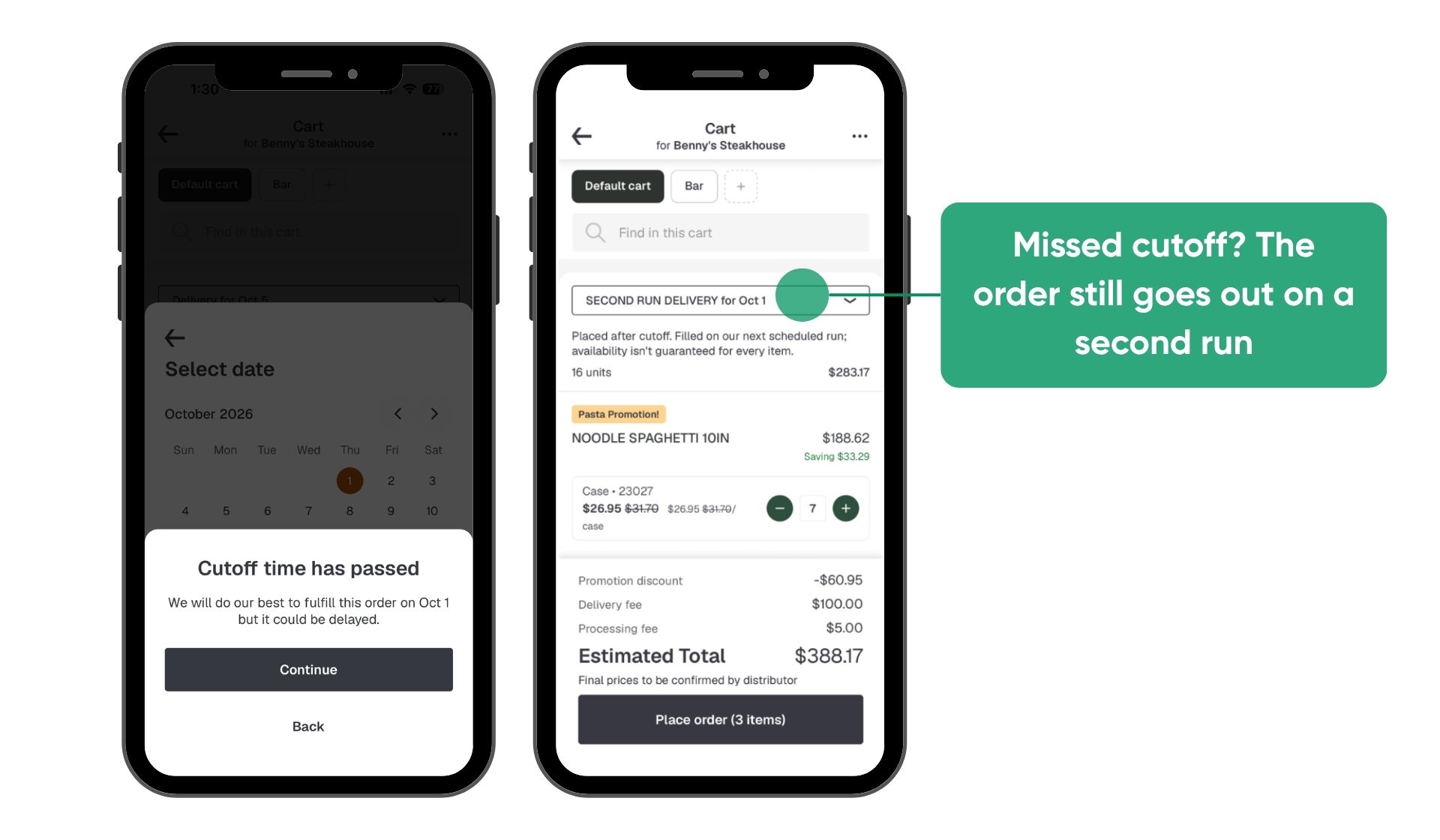
An operator who missed cutoff used to hit a grayed-out date, then called their rep or skipped the order. Second Run gives those customers a separate route that can still deliver, with its own delivery fee, order minimum, customer list, and messaging. Orders go to your ERP under their own fulfillment type, so routing and billing stay separate from your regular run.
- Orange means there's still time. Link Second Run as the fallback for your Delivery route, and a date whose cutoff has passed shows orange instead of gray when the second run can still make it. The operator picks it, confirms, and the order goes in as Second Run.
- Carts that run past cutoff switch over on their own. If a cart passes cutoff before it's placed, it moves to the fallback route, and a notification lets the operator know.
- Your rules, your route. Set the fee, minimum, and customer list for the second run independently of your regular delivery.
See the Second Run Fulfillment help center article for the full walkthrough.
Availability
Available on request. Contact your Pepper account team to set up Second Run.
Record Cash and Check Payments
Close the invoice the moment the money's in hand.
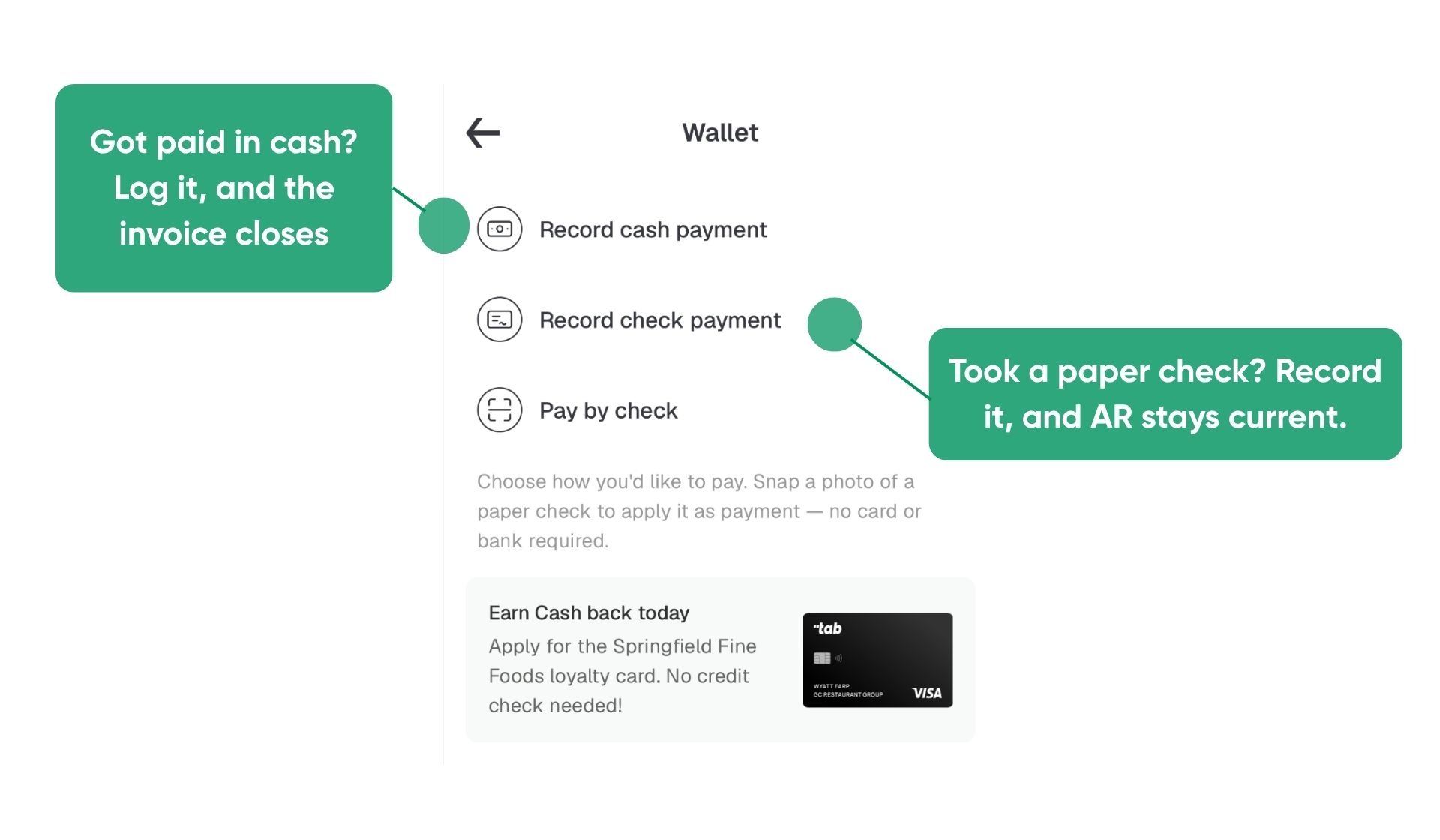
For many distributors with a non-digitally native customer base, plenty of payments still happen at the door or the counter, outside of Pepper. Select "Record cash payment" or "Record check payment" in the payments wallet, and the invoice closes right away. The customer gets a receipt automatically, and your AR stays current without waiting on a manual update.
Availability
Live for Finance Hub customers. No setup required.
PayTo for Australia
Due to the surcharging ban, Pepper is investing in more ways for operators to pay in Austrailia - Real-time bank payments without card fees.
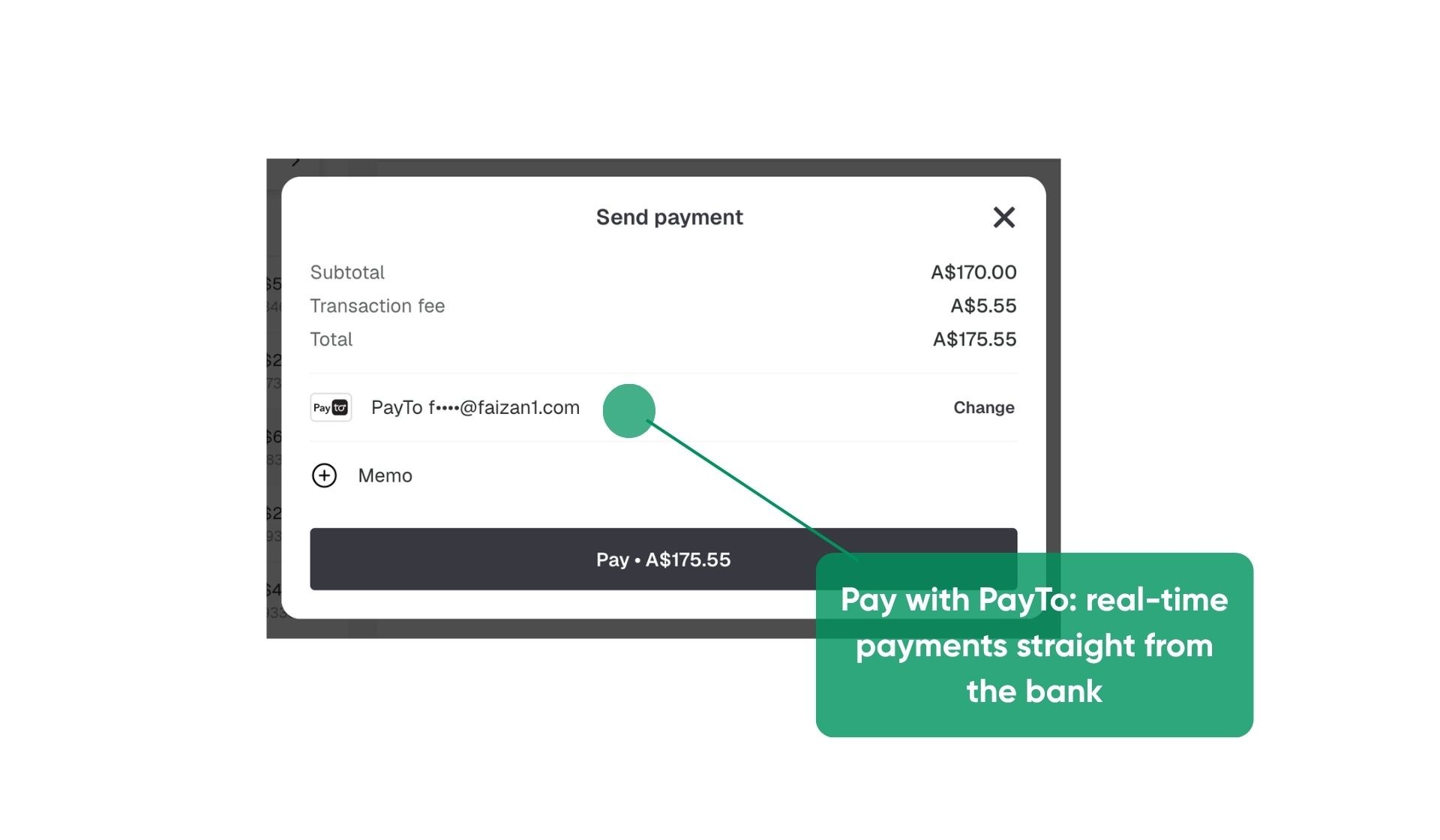
Australian customers can now pay straight from their bank account through PayTo. Once a customer authorizes a PayTo agreement, payments clear from their account in real time, the way a card payment does, without the card fees. Distributors turn PayTo on per customer, set its fee like any other payment method, and filter the payments list by PayTo.
See the PayTo help center article for the full walkthrough.
Availability
Available to Finance Hub customers in Australia.
Search by the Field You Need
Know the item code? Go straight to it.
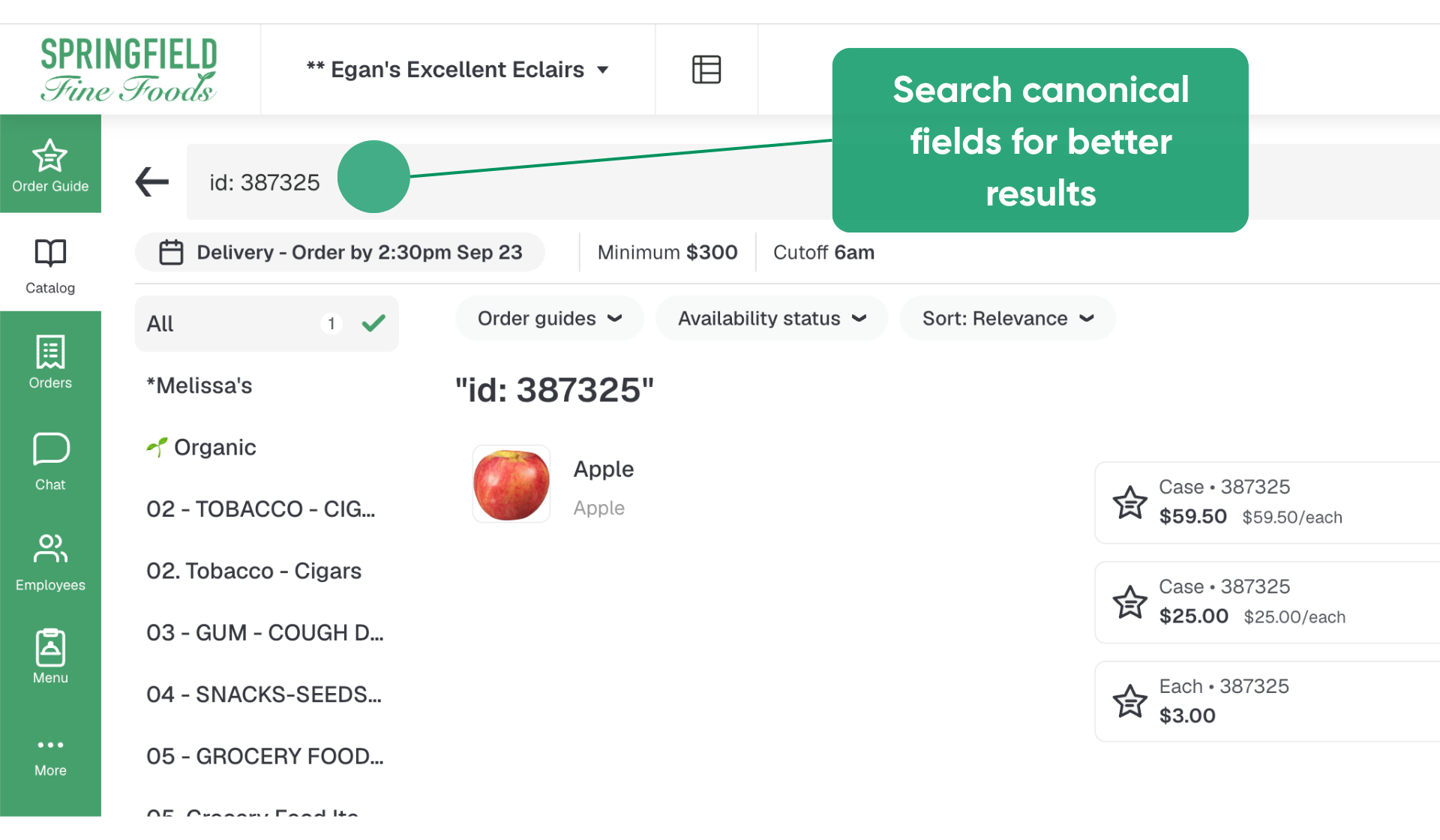
A code typed into search used to get the same fuzzy match as everything else and could land below name and description results. Catalog search can now target a single field. Start your search with a key and a colon, and only that field gets searched:
- id: searches item codes only
- name: searches item names only
- description: searches descriptions only
- kw: searches extra keywords only
Searching id: 4005 returns the item with code 4005 and skips anything that only mentions 4005 in its description.
See the Searching for Items help center article for details.
Availability
Live for all storefront customers. No setup required.
Custom Shelf Tags
Tag the items that aren't in your catalog
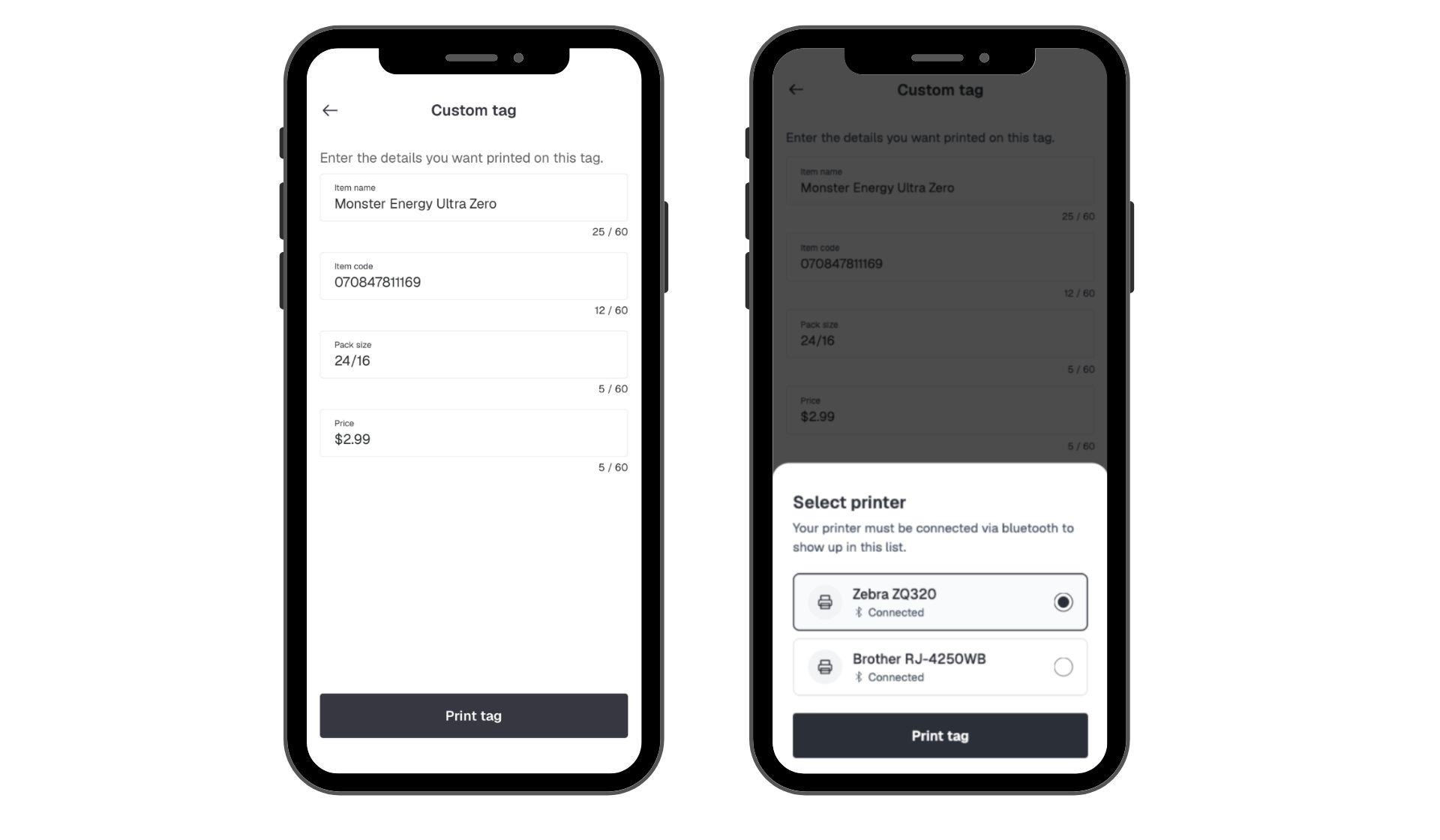
Local products, one-off specials, and bags of ice all need a shelf tag, but none of them belong in the catalog. Operators can now print a custom tag from the Pepper mobile app: pick a template, type in the item name, code, pack size, and price, and print a single label.
See the Custom Tags help center article for details.
Availability
Off by default. Requires the Pepper mobile app and a Bluetooth label printer. Contact your Pepper account team to turn it on.